Read “Not found”
What shoppers asked for and the assistant could not answer, in their own words: the shortest list of what to add or change.
Help center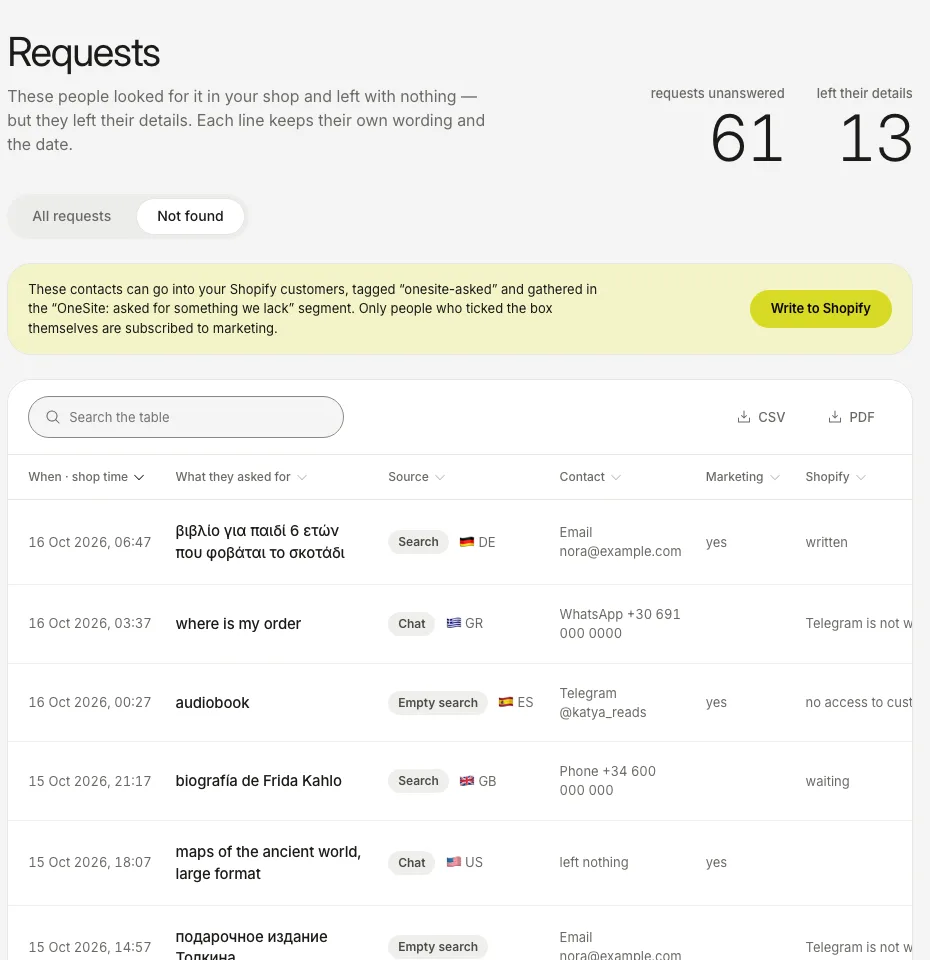
The screenshots show the real dashboard with sample data from a demo shop, not a live one.
Open Requests and switch to Not found. The other view, All requests, lists every request.
What a row tells you
| Column | Meaning |
|---|---|
| Request | What the shopper typed or said, unchanged, with the date. |
| Source | Where they asked: the assistant chat or your shop’s own search box. |
| Contact | Filled in only when the shopper chose to leave one. |
| Marketing | Whether they ticked the box. Only these people may be marketed to. |
| Shopify | Whether the contact was saved to your Shopify customers. |
Why something is not found
| Reason | What it means | What to do |
|---|---|---|
| You do not stock it | It is not in your catalogue. | Demand you can see. Decide whether to add it. |
| Not your shop | You do not sell this. | Nothing to do. |
| Conditions clash | The shopper’s requirements contradict each other. | The assistant asks again by itself. |
What to do with it
- If you sell it under another name, add the shopper’s word in Search rules.
- If you do not sell it, see how often it came up in Insights, under What they ask.
- If a shopper left a contact, the contact stays with you. On Shopify you can save it to your customers with one button.
- The Weekly email brings the same list to your inbox.
More on the figures: Read Insights.
Still stuck?
Write to hello@onesite.agency. Send your shop address and what the Install tab says: it usually shows the cause.