Install the OneSite Assistant app in your Shopify admin and approve the plan. Shopify shows the permissions it asks for: your products, your published languages and a narrow view of orders.
Say what the shop sells. It is one question, asked once, and it tells the assistant how to read your catalogue.
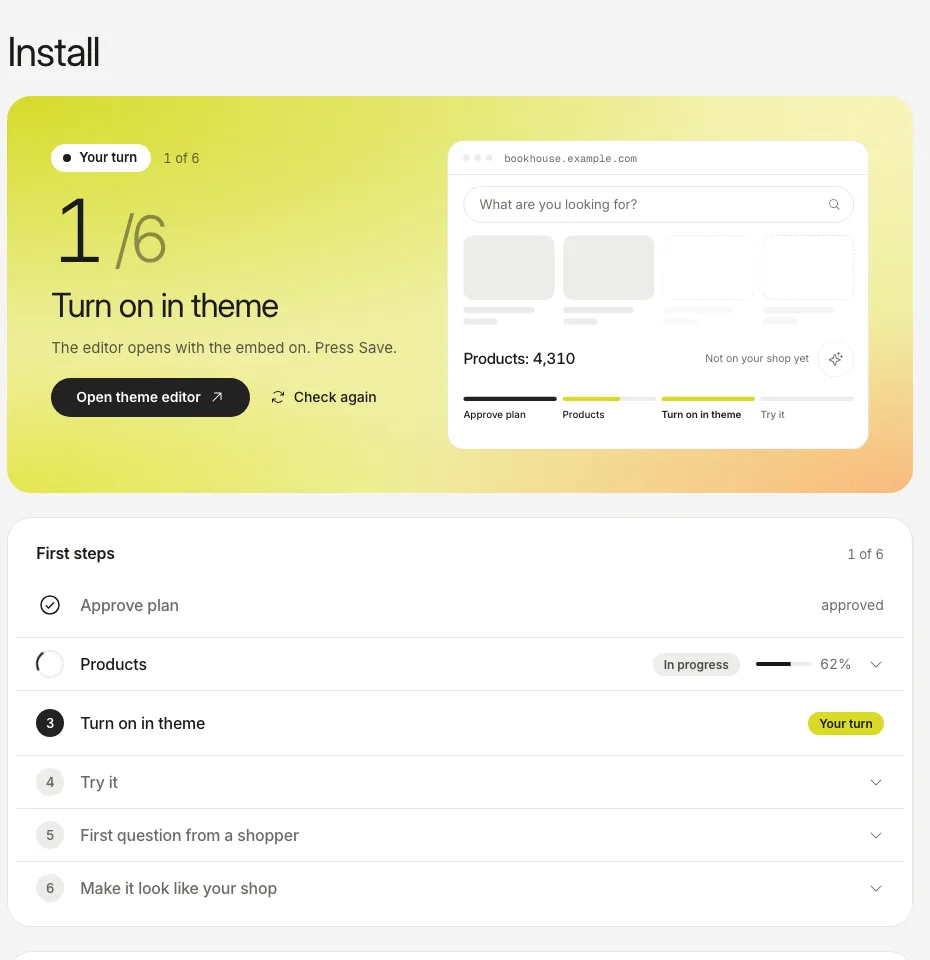
Open Install and press Open theme editor. The editor opens with the app embed already on. Press Save.
Wait while your products are read. A few dozen take about two minutes; Install shows the progress and says when it is done.
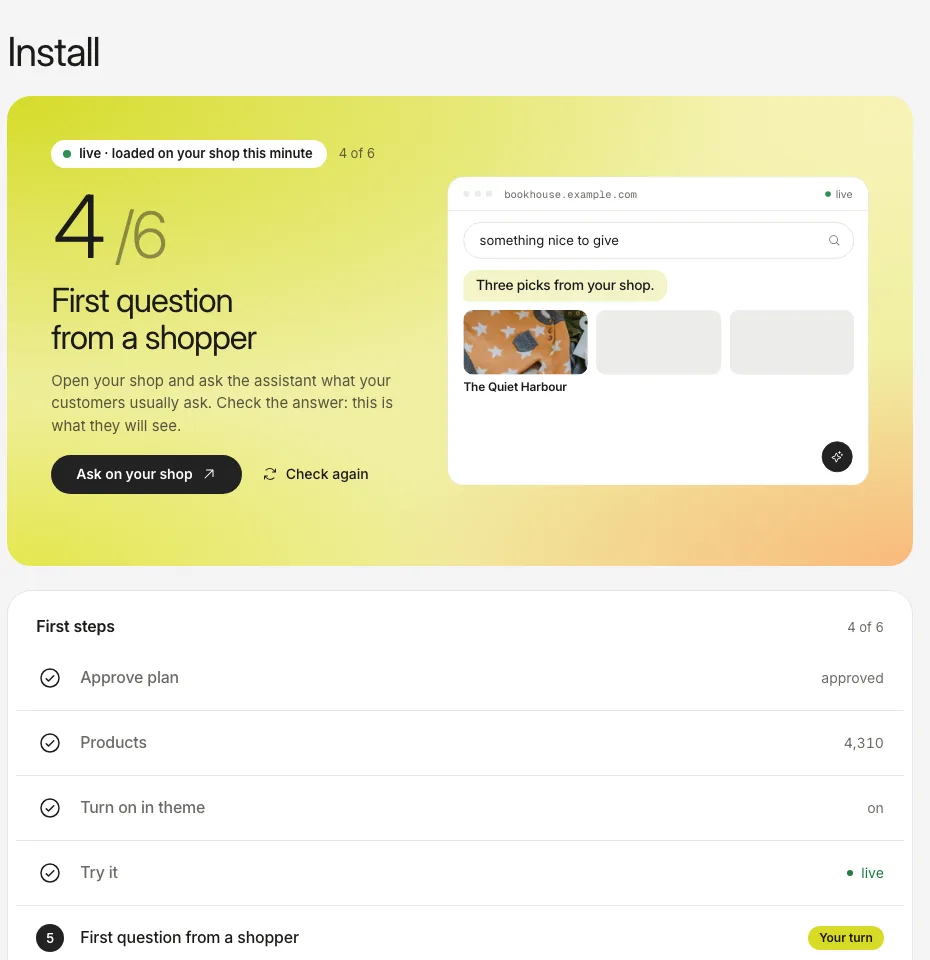
Open your shop, click the button in the corner and ask something the way a customer would.
The screenshots show the real dashboard with sample data from a demo shop, not a live one.
Switch the embed on in the theme that is published. Switched on in a draft theme, it only loads in that theme’s preview.
How you know it worked
The top card of Install turns to “live” and names the address the assistant was loaded from. The next step then asks you to put a first question to it.