In WordPress open Plugins, Add New and install OneSite Assistant. If we sent you the plugin as a zip file, use Upload Plugin instead. Then press Activate.
Open Settings, OneSite Assistant and press Connect this shop. A new tab opens: choose the plan there.
Come back to the plugin page and press I have subscribed — fetch the key. The page says the assistant is running on your storefront and shows your shop and key.
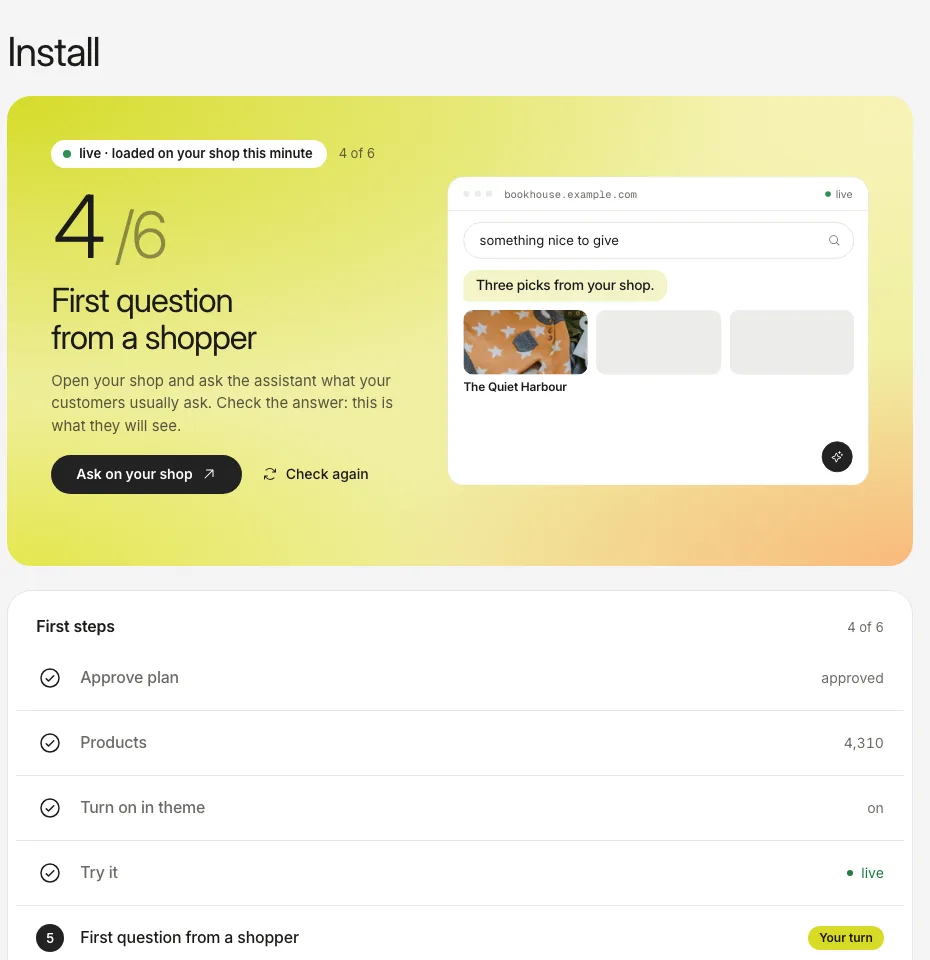
Press Open the dashboard. Install shows your products being read; that starts by itself.
Open your shop in a private window and ask something.
The screenshots show the real dashboard with sample data from a demo shop, not a live one.
The plugin does
The plugin does not
Puts one script tag on your pages
Read your products: we read your public storefront
Answers one question from our server: is this site really yours
Take payments or build the answers
Reports orders the assistant took part in, signed by your own server
Send any shopper name, email, phone number or address
The site must be reachable from the internet. If the plugin says it could not reach the assistant, check maintenance mode and any password in front of the site.